
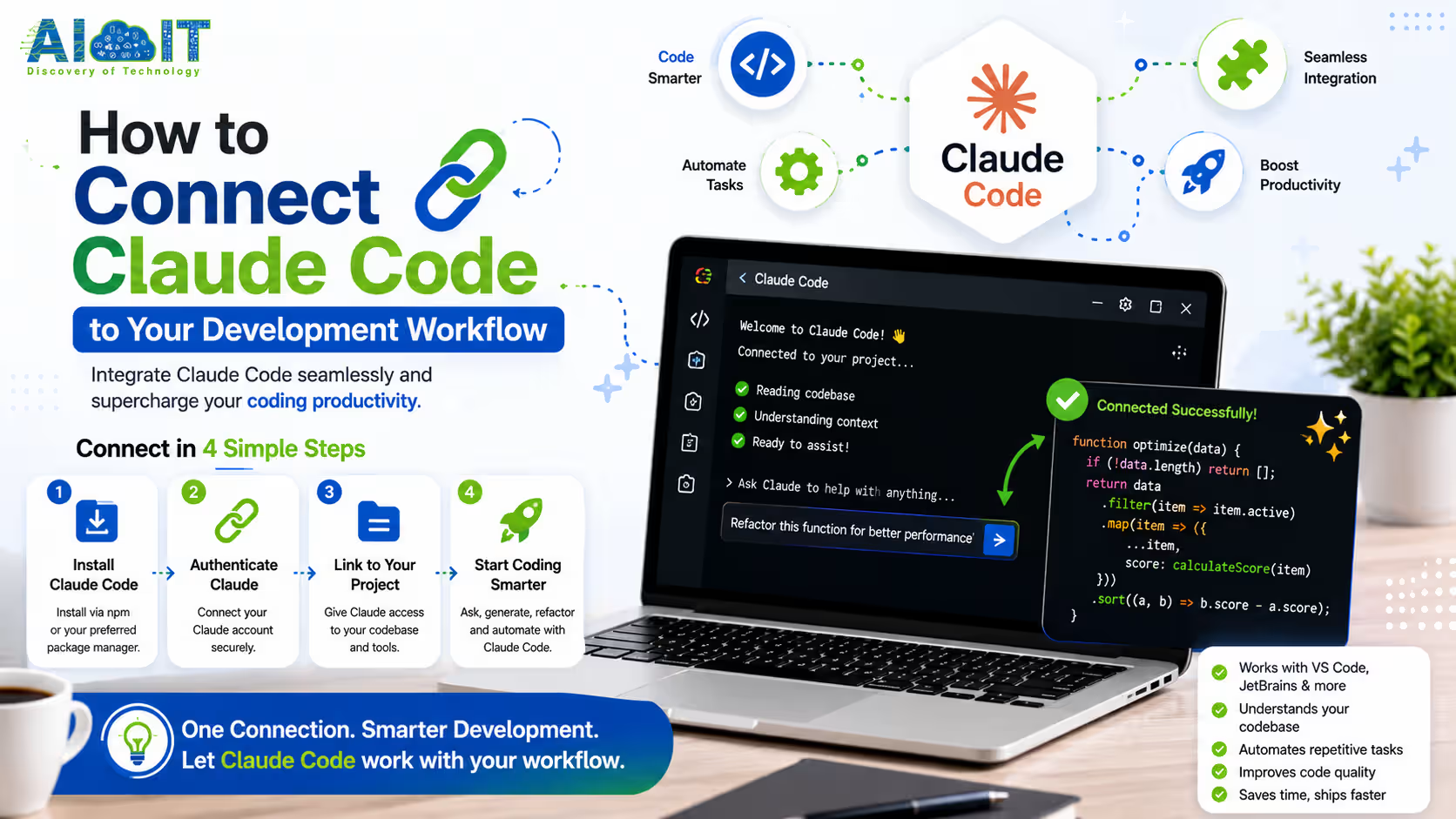
Claude Code is not a chatbot you paste code into. It’s a full terminal-based agentic developer that can read your codebase, run commands, call external tools, write and test code, commit to GitHub and deploy, all from a single conversation. This guide covers installation, setup, real workflow integrations, MCP tools, CLAUDE.md configuration, Git workflows, CI/CD and the advanced setups experienced developers are using to achieve real productivity gains.
Here’s the honest truth about Claude Code that most people miss when they first install it.
They treat it like a smarter autocomplete. Ask a question. Get some code. Paste it in. Repeat.
That’s not how it works. And using it that way means you’re getting about 10 percent of what it can actually do.
Claude Code is an agent. It reads your entire codebase, runs commands in your terminal, writes tests, pushes to Git, connects to external tools through MCP, and executes multi-step workflows from a single prompt. The moment you connect it properly to your actual development environment, everything changes. [Check the official claude code workflow documents before doing]
What Is Claude Code and How Does It Work?
Claude Code is Anthropic’s terminal-based AI coding agent, available as a CLI tool and desktop app. It reads your full codebase through the file system, executes shell commands, runs tests, interacts with Git, and connects to external services through MCP server integrations. Unlike IDE plugins that only see the current file, Claude Code has full project context and can execute multi-step agentic tasks autonomously with or without step-by-step human approval.
Claude Code operates through a simple but powerful model. You give it a task in natural language. It reads the relevant files, figures out what needs to change, writes the code, runs the tests, and commits the result. You review and approve at the points that matter.
Unlike Copilot or Cursor, Claude Code doesn’t live inside your editor by default. It lives in your terminal, which gives it far broader access to your environment, your file system, your version control, and your deployment tools.
Recent News in AI:
OpenAI Codex Is Now on Your Phone: What Developers Need to Know
Google Introduces Gemini Intelligence: The Future of Smarter Android Experiences
OpenAI Releases GPT-5.5 Just Days After Anthropic’s Opus 4.7
Installation and Initial Setup
Prerequisites
Before installing, make sure you have:
- Node.js version 18 or higher
- npm installed alongside Node.js
- A terminal you’re comfortable working in (any OS)
- An Anthropic API key or a Claude Pro/Max subscription
- A Git repository to work inside
Step 1: Install Claude Code
Open your terminal and run:
npm install -g @anthropic-ai/claude-codeThis installs Claude Code globally on your machine. Once installed, you access it simply by typing claude from any project directory.
Step 2: Authenticate
Run Claude Code for the first time:
claudeClaude Code will prompt you to authenticate. If you’re using a Claude Pro or Max subscription, sign in via browser OAuth. If you’re using the API directly, paste your Anthropic API key when prompted.
Step 3: Navigate to Your Project
Always start Claude Code from inside your project directory. This is critical because Claude Code uses your current working directory as its root context. Everything it reads, writes, and operates on starts from that anchor point.
cd your-project-folder
claude
Step 4: Run a First Check
Confirm the setup is working by asking Claude to orient itself:
Explore this codebase and give me a summary of the architecture, tech stack, and any areas that look like they need attention.If Claude returns a coherent summary of your actual project structure, the setup is working correctly. Check the guide in youtube.
Creating Your CLAUDE.md File: The Most Important Setup Step
Most developers who get serious results from Claude Code point to one specific configuration file as the biggest single productivity unlock: CLAUDE.md.
CLAUDE.md is a markdown file placed in the root of your project that Claude Code automatically reads at the start of every session. It provides persistent project context including architecture decisions, coding conventions, which commands to run, tech stack specifics, environment variables, and any rules you want Claude to follow throughout the project. Without CLAUDE.md, Claude Code discovers context from scratch every session. With it, Claude starts every session already knowing your project deeply.
What to Put in CLAUDE.md
Here is a battle-tested CLAUDE.md structure used by experienced developers:
# Project: [Name]

## Architecture Overview
[Brief description of how the system is structured]

## Tech Stack
- Frontend: [e.g., Next.js 15, TypeScript, Tailwind CSS]
- Backend: [e.g., Node.js, Express, PostgreSQL]
- Deployment: [e.g., Vercel frontend, Railway backend]

## Coding Conventions
- Use TypeScript strict mode everywhere
- Functional components only, no class components
- All API routes must include error handling and input validation
- Write tests for any new feature before marking complete

## Commands to Know
- `npm run dev` -- start local development server
- `npm run test` -- run full test suite
- `npm run build` -- production build check
- `npm run lint` -- ESLint check before committing

## Environment Setup
- Copy `.env.example` to `.env.local` and fill in values before running
- Never commit `.env.local` to Git

## Current Priorities
[What you're actively building or fixing right now]

## Known Issues
[Any known bugs or technical debt Claude should be aware of]
When Claude Code reads this at session start, it already knows your conventions, your commands, and your priorities. You spend zero time re-explaining context every session. [Check the another source for details]
Connecting Claude Code to Git and GitHub
This is where Claude Code starts to feel like having a real engineering collaborator rather than a chatbot.
What Claude Code Can Do With Git?
- Create feature branches for new work automatically
- Write meaningful commit messages that describe what actually changed
- Stage specific files rather than blanket adding everything
- Review diff output before committing
- Push branches to remote repositories
- Create pull request descriptions from its own work
- Resolve merge conflicts with context from both sides
A Typical Git Workflow With Claude Code
Instead of managing all this manually, give Claude a single instruction:
Create a new branch called feature/user-auth-improvements, implement the changes we discussed, write tests for the new behavior, run the test suite, and if everything passes, commit with a clear message and push the branch to origin. Then draft a pull request description I can review.
Claude creates the branch, writes the code, runs the tests, checks the output, commits only if green, pushes, and hands you a PR description. You review the diff and merge when satisfied.
Setting Up GitHub Integration via MCP
For deeper GitHub integration, including reading issues, creating PRs, and commenting on code reviews, add the GitHub MCP server:
claude mcp add githubAuthenticate when prompted. Claude Code can now read GitHub issues directly, pull issue context into its coding work, and interact with your repository through the GitHub API rather than just through local Git commands.
Connecting to VS Code and Your IDE
Claude Code is terminal-first but works naturally alongside VS Code and other editors.
The Side-by-Side Workflow
The most common setup among experienced Claude Code users is this:
- VS Code open on one side of the screen for reading code and reviewing changes
- Terminal with Claude Code on the other side for issuing instructions
- Claude modifies files in your project, VS Code detects and shows the changes live
This gives you the best of both worlds. Claude operates with full terminal access. You see every change in real time in your editor without leaving your familiar environment.
Using the onUI Browser Extension
For frontend development, one of the most practical integrations shared by developers is the onUI browser extension.
The workflow: open your running application in Chrome, activate onUI, click on elements you want changed, draw around layout issues, and add inline comments. Claude Code fetches these annotations through the onui_get_report MCP tool, implements the corrections, and you refresh to verify.
This eliminates the frustrating cycle of trying to describe a visual problem in words. You point at it. Claude fixes it. Playwright MCP then validates the fix automatically. [Check the Reddit thread on Claude Code]
Connecting Claude Code to MCP Tools
MCP (Model Context Protocol) is the integration layer that transforms Claude Code from a standalone coding agent into the center of your entire development stack.
MCP servers extend Claude Code’s capabilities by giving it access to external tools and services. Popular integrations include GitHub (repository management), Playwright (browser testing automation), Figma (design handoff), databases (direct query access), Slack (team communication), Jira (issue tracking), and many others. Each MCP server is added once and then available in every Claude Code session automatically.
How to Add an MCP Server?
Add any MCP server using the Claude Code CLI:
claude mcp add [server-name]Or configure multiple servers at once in an mcp.json file inside your project root:
{
  "mcpServers": {
    "github": {
      "command": "npx",
      "args": ["-y", "@modelcontextprotocol/server-github"],
      "env": {
        "GITHUB_PERSONAL_ACCESS_TOKEN": "your_token_here"
      }
    },
    "playwright": {
      "command": "npx",
      "args": ["-y", "@modelcontextprotocol/server-playwright"]
    },
    "postgres": {
      "command": "npx",
      "args": ["-y", "@modelcontextprotocol/server-postgres"],
      "env": {
        "POSTGRES_CONNECTION_STRING": "your_connection_string"
      }
    }
  }
}
Most Useful MCP Integrations for Developers
| MCP Server | What It Unlocks |
|---|---|
| GitHub | Read issues, create PRs, review code, manage branches |
| Playwright | Automated browser testing, visual regression checks |
| Figma | Pull design specs and component tokens directly into code |
| PostgreSQL | Query your database, inspect schemas, debug data issues |
| Slack | Read channel context, post updates, notify team on completions |
| Jira/Linear | Pull ticket details, update status, link commits to issues |
| Sentry | Read error reports and automatically fix traced bugs |
| Netlify/Vercel | Deploy directly from Claude Code sessions |
Building Your RALPH Loop: A Complete Development System
One of the most structured Claude Code workflow systems shared by developers uses a loop called RALPH.
RALPH stands for: Research, Architect, List, Plan, Handoff
Here is how it works in practice:
Research
Before writing any code, Claude researches the task thoroughly:
Research best practices for implementing JWT refresh token rotation in a Node.js Express app. Look at the existing auth code in this project and identify any current gaps.Architect
Claude designs the solution before writing it:
Based on the research, propose an architecture for the refresh token implementation. Show me the file structure changes, new functions needed, and how it fits the existing auth system.
List
Break the work into explicit tasks with clear acceptance criteria:
Create a numbered task list for implementing this architecture. Each task should be completable in one focused session and have a clear done-condition.
Plan
Confirm the plan before execution:
Review the task list. Identify any dependencies between tasks, flag any risks, and confirm the order of execution makes sense before we start.
Handoff
Execute with a structured prompt that includes context, constraints, and approval gates:
Execute Task 1 from the plan. When done, show me the changes, run the relevant tests, and summarize what was completed before moving to Task 2.
This system prevents Claude from going off in the wrong direction on large features and keeps you in control of scope and quality.
Connecting to CI/CD Pipelines
Claude Code doesn’t have to stay on your local machine. Teams are running it inside CI/CD pipelines to automate code review, testing, and documentation as part of the standard deployment process.
Running Claude Code in GitHub Actions
Add Claude Code as a step in your GitHub Actions workflow:
- name: Claude Code Review
  uses: anthropics/claude-code-action@beta
  with:
    anthropic_api_key: ${{ secrets.ANTHROPIC_API_KEY }}
    prompt: |
      Review the changes in this pull request. Check for:
      - Security vulnerabilities
      - Performance issues
      - Missing tests
      - Inconsistencies with existing code conventions
      Post your findings as a PR comment.
With this in your workflow, every pull request receives an automated Claude Code review before human reviewers see it. Obvious issues get caught automatically. Human review time focuses on architecture and judgment calls.
Automated Bug Fix on Test Failure
A more advanced pattern: trigger Claude Code automatically when CI tests fail.
- name: Auto-Fix on Test Failure
  if: failure()
  uses: anthropics/claude-code-action@beta
  with:
    anthropic_api_key: ${{ secrets.ANTHROPIC_API_KEY }}
    prompt: |
      The test suite failed. Read the test output, identify the root cause, implement a fix, and re-run the tests. If fixed, commit the change to this branch.
The Headless Mode Workflow for Autonomous Tasks
For long-running tasks you want to run in the background without staying in an active terminal session, Claude Code supports headless mode.
claude --headless "Refactor all database query functions in /src/db to use the new connection pooling pattern, write tests for each, and commit the changes with clear messages."Claude runs the full task without interactive prompts, completes the work, and exits. You come back to a finished task rather than babysitting progress.
Use headless mode for:
- Overnight refactors across large codebases
- Documentation generation for an entire module
- Batch test writing for legacy code
- Dependency updates with automated verification
Also know: What Is Claude Cowork? Features, Use Cases, and How to Use It?
Production Workflow: How Real Teams Are Using This
Here’s what actual development workflow integration looks like at the team level, based on documented production experience from developers who’ve integrated Claude Code over six to twelve months:
The 40% Productivity Benchmark
One engineering team working on a large-scale production codebase documented a 40% productivity increase after four months of Claude Code integration. Their specific workflow:
- Claude handles all boilerplate, scaffolding, and repetitive pattern implementation
- Developers focus exclusively on architecture decisions and business logic
- Code review time dropped because Claude-generated code follows conventions automatically via CLAUDE.md
- Documentation is generated alongside code rather than after the fact
- Junior developers work at near-senior output levels because Claude handles the syntax layer while they focus on the logic layer
Task Allocation That Works in Practice
Here is how experienced teams divide work between developers and Claude Code:
| Task Type | Who Handles It |
|---|---|
| Boilerplate and scaffolding | Claude Code |
| Repetitive pattern implementation | Claude Code |
| Writing tests for existing code | Claude Code |
| Documentation generation | Claude Code |
| Dependency updates with testing | Claude Code |
| Bug fixes with clear reproduction steps | Claude Code |
| Architecture decisions | Developer |
| Business logic with ambiguous requirements | Developer |
| Security-sensitive implementations | Developer review + Claude assist |
| Performance optimization for critical paths | Developer |
Context Management: Keeping Claude From Losing Track
The most common frustration developers hit after the first week of using Claude Code: context drift on long tasks.
Claude’s context window fills up over long sessions. When it does, earlier context drops out and Claude starts making decisions without the full picture. You end up with code that contradicts something it correctly implemented two hours ago.
Here’s how experienced developers prevent this:
- Start a fresh session for each major task rather than letting one session run for hours
- Use CLAUDE.md to persist important context so every new session starts informed
- Break large features into explicitly scoped sub-tasks with defined start and end points
- Write to task files — have Claude save its plan and progress to a markdown file in the project so context survives session resets
- Review and compress context — when a session is getting long, ask Claude to summarize what’s been done and start a fresh session with that summary as the opening prompt
Summarize everything we've implemented in this session, including decisions made, files changed, and what remains. I'll start a fresh session with this summary.Permission Management: Balancing Speed and Safety
Claude Code asks for permission on potentially consequential actions by default. This is the right default. But in controlled environments, you can adjust this.
Permission Levels
- Default mode — Claude asks before running commands, writing files, or making network calls. Safest for unfamiliar projects.
- Auto-approve mode — For specific trusted commands, you can pre-authorize them so Claude doesn’t interrupt for routine actions.
- Skip permissions mode — Only for sandboxed or personal controlled environments:
claude --dangerously-skip-permissionsNever use skip-permissions mode on shared systems, production infrastructure, or machines with sensitive credentials beyond your project.
DevContainer Skill for Safe Permission Bypass
One developer-shared solution for running Claude Code without permission prompts while staying safe: a DevContainer setup that mirrors your development environment in a fully sandboxed container. Claude operates freely inside the container, which has no access to anything outside it.
Advanced Techniques Worth Knowing
These are the setups used by developers getting the most out of Claude Code:
Custom Slash Commands
Save frequently used workflow prompts as slash commands inside Claude Code. After a successful workflow runs, save it:
Save this workflow as /feature-scaffold so I can reuse it for any new feature with one command.Future sessions: type /feature-scaffold and describe the feature. Claude executes the full workflow automatically.
Spec-Driven Development
The most consistent results come from writing a detailed spec before letting Claude write any code.
- Define the feature clearly in a markdown file inside the project
- Break the feature into discrete tasks with acceptance criteria
- Feed Claude one task at a time rather than the entire feature
- Verify each task completes correctly before moving to the next
This approach prevents the common failure mode where Claude builds the wrong thing for 45 minutes because the initial prompt was ambiguous.
Multi-Agent Parallel Worktrees
For large refactors or parallel feature development, Claude Code supports multiple agents working on separate Git worktrees simultaneously.
git worktree add ../project-feature-a feature-branch-a
git worktree add ../project-feature-b feature-branch-b
Then open separate Claude Code sessions in each worktree directory. Both agents work in parallel without interfering with each other. This is particularly effective for teams where one developer orchestrates multiple Claude Code agents running different parts of a large feature.
Few Commonly Asked Questions
What is Claude Code and how is it different from GitHub Copilot?
Claude Code is a terminal-based agentic developer that executes multi-step tasks, runs commands, and integrates with your full dev environment. Copilot is an IDE autocomplete assistant that suggests code inline.
How do I install Claude Code on my machine?
Run npm install -g @anthropic-ai/claude-code in your terminal. Requires Node.js 18 or higher. Authenticate with your Anthropic API key or Claude Pro subscription on first launch.
What is CLAUDE.md and why does it matter?
CLAUDE.md is a project-level markdown file Claude reads at every session start. It provides persistent context about your architecture, conventions, and commands, so Claude starts every session already knowing your project.
How do I connect Claude Code to GitHub?
Run claude mcp add github and authenticate with your GitHub token. Claude Code can then read issues, create pull requests, and interact with your repository through the GitHub API.
Can Claude Code run inside a CI/CD pipeline like GitHub Actions?
Yes. Use the anthropics/claude-code-action GitHub Action to run Claude Code as a CI step for automated code review, documentation generation, or bug fixing on test failure.
How do I stop Claude Code from losing context on long tasks?
Start a fresh session per major task, use CLAUDE.md for persistent context, break large features into scoped sub-tasks, and save progress summaries to markdown files between sessions.
Is it safe to run Claude Code with skip-permissions mode?
Only in personal, sandboxed, or DevContainer environments you fully control. Never use it on shared systems, production infrastructure, or machines with sensitive credentials outside your project.
How do I run Claude Code as a background task without watching the terminal?
Use headless mode: claude --headless "your task description". Claude completes the task without interactive prompts and exits when finished.
Disclaimer
This article is based on publicly available documentation from Anthropic, developer experience reports on Dev.to, Reddit, and GitHub, and community tutorials as of May 2026. Claude Code features, CLI commands, MCP server availability, permission behavior, and pricing may change as Anthropic updates the platform. Always refer to the official Claude Code documentation at code.claude.com for the most current setup instructions. This article is for informational purposes only.
