

Integrating AI coding assistants can boost developer productivity by up to 50% within just two hours of setup. Many IT professionals struggle with fragmented installation guides and complex configuration requirements that delay project momentum. This comprehensive guide provides a systematic approach covering prerequisites, tool selection, secure integration, and validation to help you deploy AI tools efficiently and start seeing immediate productivity gains.
Key Takeaways
| Point | Details |
|---|---|
| Prerequisites | Compatible IDEs, API keys, and linked service accounts are essential before installation |
| Tool Selection | Match AI tool capabilities to your specific use case to avoid unnecessary complexity |
| Security First | Strong API key management and two-factor authentication prevent breach risks |
| Testing Required | Validate integration with sample projects to confirm functionality before production use |
| Productivity Impact | Proper setup delivers measurable productivity improvements of up to 50% |
Prerequisites for AI Tool Setup
Before diving into AI tool installation, you need to verify your development environment meets specific technical requirements. Developers need compatible IDE versions, API keys, and linked accounts before AI tool setup can succeed.
Your IDE must support AI extensions and plugins. Visual Studio Code v1.70 or later works seamlessly with most AI coding assistants, while JetBrains IDEs require version 2023.1 or newer. These versions include the extension APIs that AI tools rely on for real-time suggestions and code analysis.
API access forms the backbone of AI tool functionality. You’ll need active API keys from your chosen AI service providers, whether that’s OpenAI, Anthropic, or GitHub. Obtain these keys directly from provider dashboards and keep them secure from the start. For GitHub Copilot specifically, you’ll need an active subscription and your GitHub account properly linked.
Network connectivity and related software prerequisites deserve attention too. A stable internet connection is non-negotiable since most AI tools query cloud servers for inference. Install any required runtime libraries or language-specific dependencies your chosen AI tool needs. Python developers might need pip packages, while JavaScript developers may require npm modules.
Hardware requirements remain minimal for cloud-based AI tool requirements. Since processing happens on remote servers, your local machine only needs enough resources to run your IDE smoothly. This makes AI tools accessible even on modest development laptops.
Essential Prerequisites:
- IDE version compatible with AI extensions (VS Code 1.70+, JetBrains 2023.1+)
- Active API keys from chosen AI service providers
- Linked service accounts (GitHub for Copilot, OpenAI platform account)
- Stable internet connection for cloud API calls
- Required runtime libraries and language dependencies
Choosing the Right AI Tool and Setup Process
Selecting an AI tool that matches your project requirements prevents wasted effort and integration headaches. Your specific use case should drive this decision, not popularity or marketing hype.
Start by defining what you need AI to accomplish. Code completion and suggestion tools like GitHub Copilot excel at accelerating routine coding tasks. Conversational AI assistants such as ChatGPT or Claude work better for problem-solving, debugging explanations, and architecture discussions. Data analysis projects benefit from specialized tools like OpenAI’s data analysis features or purpose-built analytics assistants.
Compare tool capabilities against your workflow requirements. GitHub Copilot integrates directly into your editor for inline suggestions. OpenAI Codex offers more flexibility through API integration but requires custom implementation. Claude provides strong reasoning capabilities for complex technical discussions. Each tool brings different strengths to your development process.
Stepwise approach starting with the right AI tool choice reduces setup complexity and improves success. Following a structured process prevents common pitfalls and ensures nothing gets overlooked during configuration.
Systematic Setup Process:
- Identify your primary AI use case (code assistance, chat, analysis)
- Research and compare tools matching that use case
- Verify your environment meets technical prerequisites
- Obtain necessary API keys and account access
- Install required IDE extensions or plugins
- Configure environment variables securely
- Enable AI features in your development environment
- Test integration with a simple sample project
- Validate security settings and access controls
- Document your configuration for team members
This methodical approach transforms a potentially overwhelming task into manageable steps. You can troubleshoot each phase independently rather than facing a tangled mess of configuration issues. Take time at the tool selection stage to avoid costly switching later.
Explore AI tool options and categories to understand the full landscape before committing to a specific solution.
Step-by-Step Technical Setup
Transforming preparation into a functional AI integration requires precise technical execution. This phase bridges planning and productivity through careful configuration.
Begin by installing the appropriate extension or plugin for your chosen AI tool. In Visual Studio Code, access the Extensions marketplace and search for your tool by name. JetBrains users navigate to Settings, then Plugins, to find compatible AI assistants. Install extensions, configure environment variables with API keys, enable features, and verify setup within one to two hours for most tools.
Secure credential management prevents future security incidents. Never hardcode API keys directly in configuration files or commit them to version control. Instead, use environment variables or dedicated secret management tools. On Unix systems, add keys to your ".bashrcor.zshrc` file. Windows users can set system environment variables through the Control Panel.
Configuration Steps:
- Install IDE extension from official marketplace
- Create secure storage for API credentials
- Set environment variables pointing to credential storage
- Restart your IDE to load new environment settings
- Authenticate the extension with your API key
- Adjust settings for suggestion frequency and behavior
- Enable or disable specific AI features based on needs
Activate AI features incrementally to understand their impact. Start with basic code completion, then gradually enable more advanced capabilities like multi-line suggestions or contextual explanations. This measured approach helps you adapt to AI assistance without overwhelming your workflow.
Validation through testing confirms everything works correctly. Create a simple project in your primary programming language and write a few functions. Watch for AI suggestions appearing in real time. Try accepting and rejecting suggestions to verify the extension responds properly. Test edge cases like syntax errors to see how the AI handles imperfect code.
Visit AI coding tools setup resources for language-specific configuration guides.
Pro Tip: Set a monthly calendar reminder to check for extension updates. AI tool providers frequently release improvements, bug fixes, and security patches. Staying current ensures you benefit from the latest capabilities and protections.
Integrating AI Coding Assistants
AI coding assistants like GitHub Copilot and OpenAI Codex represent the most impactful category for developer productivity. These tools embed directly into your coding workflow, providing contextual suggestions as you type.

AI coding assistants integration can increase developer productivity by up to 50% within two hours. This dramatic improvement comes from eliminating routine boilerplate code, reducing syntax lookups, and accelerating implementation of common patterns.
Installation mirrors the general process but with assistant-specific considerations. GitHub Copilot requires an active subscription and GitHub account authentication. OpenAI Codex needs API access through your OpenAI platform account. Both integrate through official IDE extensions available in standard marketplaces.
Integration Checklist:
- Verify subscription or API access is active and paid
- Install official extension for your specific IDE
- Link required accounts through extension authentication flow
- Configure suggestion preferences (aggressiveness, languages, context)
- Set up keyboard shortcuts for accepting or cycling suggestions
- Test with known code patterns to calibrate expectations
Customization determines how well the assistant fits your style. Adjust suggestion timing so prompts don’t interrupt your thought process. Configure which file types trigger AI analysis to avoid irrelevant suggestions in configuration files or documentation. Some developers prefer aggressive multi-line completions, while others want conservative single-line hints.
Start with simple projects to build trust in the AI’s capabilities. Write a basic REST API endpoint or data processing function. Notice which suggestions align with your intentions and which miss the mark. This learning phase helps you understand when to accept AI input versus when to code manually.
“Integrating AI coding assistants increases developer productivity by up to 50% within 2 hours”
Find more tools at AI coding assistant tools to explore alternatives suited to different workflows.
Pro Tip: Create a personal snippet library for patterns the AI consistently gets wrong in your codebase. Over time, you’ll develop a hybrid workflow combining AI speed with human expertise on domain-specific logic.
Common Setup Mistakes and Security Risks
Even experienced developers make configuration errors that compromise security or functionality. Understanding these pitfalls helps you avoid painful troubleshooting sessions and potential data breaches.
API key mismanagement tops the list of critical mistakes. Storing keys in plaintext files, committing them to public repositories, or sharing them through unsecured channels creates immediate vulnerability. Neglecting two-factor authentication and poor API key management raise breach risks by over 30% according to security analysis. Treat API keys like passwords and rotate them regularly even without suspected compromise.
Account security extends beyond just the AI service. Enable two-factor authentication on your IDE account, your AI provider account, and any linked services like GitHub. A chain is only as strong as its weakest link, and attackers target the easiest entry point.
Critical Security Practices:
- Store API keys in environment variables or secret managers, never in code
- Enable 2FA on all accounts related to AI tool access
- Set up API key rotation schedules (quarterly at minimum)
- Monitor usage logs for unexpected patterns or geographic anomalies
- Restrict API key permissions to minimum necessary scope
- Never share API keys through email or messaging apps
Rushing through setup creates technical debt. Skipping validation steps means discovering integration failures during critical development moments. Incomplete documentation leaves team members unable to replicate your configuration. Taking an extra 30 minutes for thorough testing and documentation saves hours of future confusion.
Tool overload fragments your workflow instead of streamlining it. Adding three different AI assistants simultaneously makes it impossible to learn any one tool effectively. Start with a single assistant matched to your primary use case. Master it completely before considering additional tools.
Learn comprehensive AI security best practices to protect your projects beyond just setup configuration.
Pro Tip: Schedule quarterly security audits of your AI tool configurations. Review access logs, check for unused API keys, verify 2FA remains enabled, and update any outdated credential storage approaches. This regular maintenance catches issues before they become incidents.
Timelines and Costs for AI Tool Setup
Realistic expectations about time and financial investment help you plan AI integration within project constraints. Typical setup times range 1 to 3 hours with costs mainly API usage fees and cloud subscriptions.
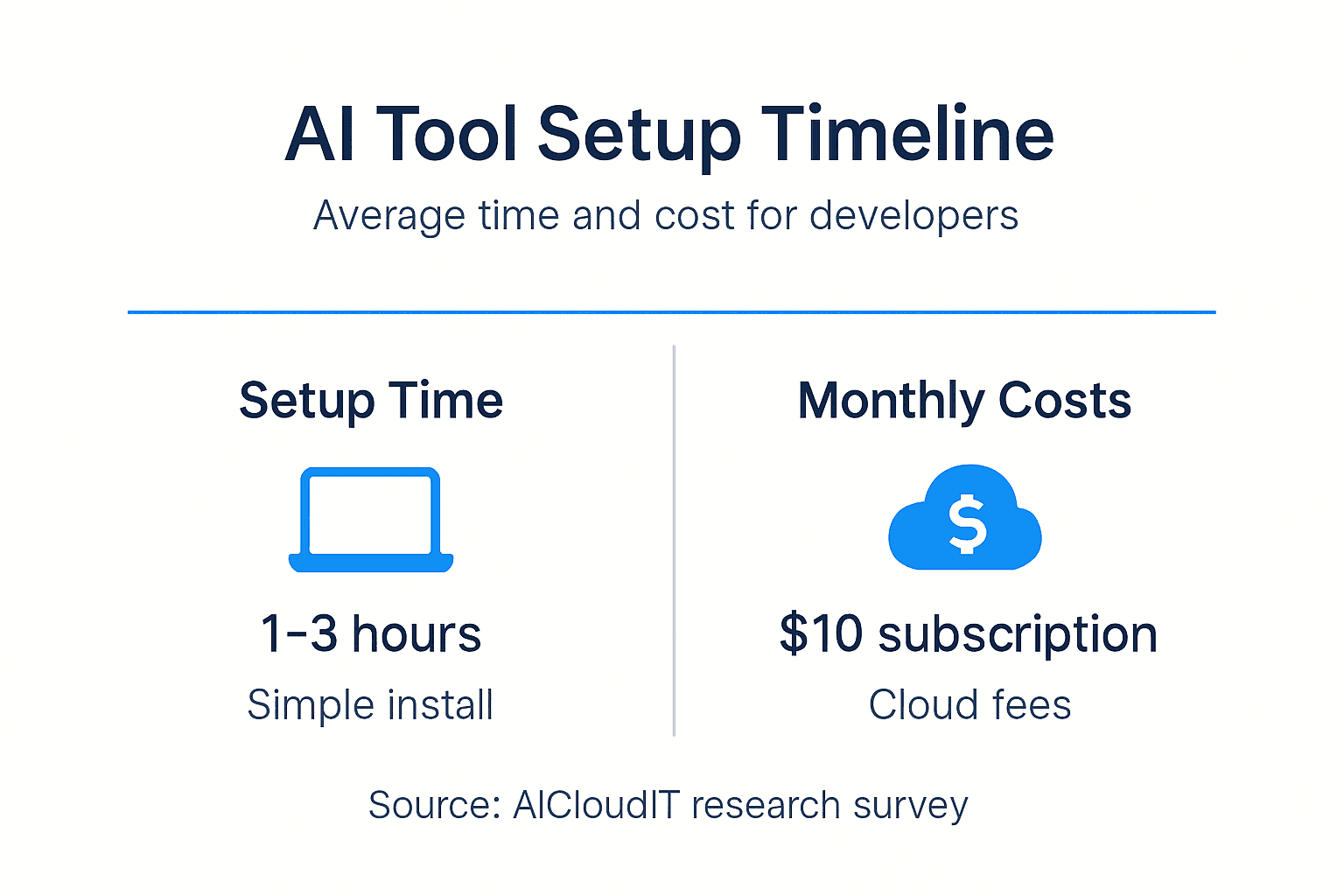
Initial configuration time varies by tool complexity and environment readiness. A straightforward GitHub Copilot installation in VS Code takes roughly one hour if your IDE and accounts are current. More complex setups involving custom API integrations or enterprise authentication systems can extend to three hours. Factor in time for testing and troubleshooting, especially on your first AI tool installation.
Ongoing costs center on subscription fees and usage-based pricing. GitHub Copilot charges a flat monthly subscription rate, making budgeting straightforward. OpenAI API access uses token-based pricing where costs scale with usage volume. Monitor your consumption closely during initial weeks to project monthly expenses accurately.
AI Tool Setup Comparison:
| Tool | Setup Time | Initial Cost | Monthly Cost | Best For |
|---|---|---|---|---|
| GitHub Copilot | 1-2 hours | $0 | $10-20/user | Code completion in IDE |
| OpenAI API | 1-3 hours | $5 credit | Variable by usage | Custom integrations |
| Claude API | 1-2 hours | Free tier | Variable by usage | Reasoning and explanations |
| Cursor IDE | 1 hour | $0 | $20/user | AI-first development |
Cloud platforms minimize hardware expenses but introduce scaling considerations. You won’t need expensive GPU workstations since inference happens remotely. However, high-volume usage can generate substantial API bills. Set up billing alerts at your cloud provider to avoid surprises.
Enterprise deployments face additional overhead for compliance and security reviews. Budget extra time for IT approval processes, security scanning of extensions, and integration with corporate authentication systems. These necessary steps can double initial setup timelines but ensure safe deployment at scale.
Explore cloud platform for AI costs and timelines to compare providers and pricing models for your specific requirements.
Expected Outcomes and Success Metrics
Measuring AI tool impact validates your setup investment and guides optimization efforts. Clear metrics separate genuine productivity gains from placebo effects.
Developer productivity improvements manifest in multiple dimensions. Coding speed increases as AI handles boilerplate and common patterns. Error rates decline when AI catches syntax mistakes and suggests better approaches. Time to implement features shortens because you spend less time searching documentation.
Key Success Indicators:
- Measurable reduction in time for routine coding tasks (target 30-50% improvement)
- Successful deployment of AI features in at least one active project
- Decreased syntax errors caught during code review
- Positive developer satisfaction scores for AI assistance
- Reduced time searching documentation for API references
Track these metrics before and after AI integration to quantify impact. Use your version control system to measure commit frequency, lines of code per hour, or time between commits. Survey team members about perceived productivity changes and frustration points.
Error reduction provides another tangible measure. Compare bug reports or failed builds before and after AI adoption. Quality-focused AI tools catch common mistakes like null pointer exceptions, type mismatches, or security vulnerabilities during development rather than in testing.
Successful integration means the AI tool becomes invisible infrastructure. You stop thinking about whether to use it and simply incorporate suggestions naturally into your workflow. This seamless adoption indicates proper configuration and effective tool selection.
Adjust configurations based on usage patterns and feedback. If suggestion acceptance rates fall below 30%, the AI may be poorly calibrated for your codebase. Tweak context settings or consider alternative tools better suited to your languages and frameworks.
Learn to evaluate results using AI performance metrics analysis frameworks designed for development workflows.
Explore AICloudIT Solutions for AI Tool Integration
Successful AI tool setup opens doors to broader development transformation. AICloudIT provides specialized resources to accelerate your journey from basic integration to advanced AI-powered development practices. Our AI development tools and resources cover emerging assistants, integration patterns, and productivity frameworks. Discover practical AI application strategies across different project types and team structures. For mobile developers, explore AI mobile app development techniques that leverage AI throughout the development lifecycle. AICloudIT connects IT professionals with curated insights, tool comparisons, and implementation guidance to maximize your AI investment.
FAQ
How long does it typically take to set up an AI tool?
Most AI tool setups complete within one to three hours depending on tool complexity and your environment readiness. Simple extensions like GitHub Copilot install faster, while custom API integrations require more configuration. Proper planning and having prerequisites ready significantly reduces setup time.
What security practices should I prioritize during AI tool setup?
Prioritize strong API key management by storing credentials in environment variables or dedicated secret managers, never in code repositories. Enable two-factor authentication on all related accounts including your IDE, AI provider, and linked services like GitHub. Regularly audit access logs for unusual activity and rotate API keys quarterly even without suspected compromise. Review comprehensive AI data security best practices for enterprise-grade protection.
Can I integrate multiple AI tools for the same project?
Start with one AI tool to reduce complexity and ensure stable integration before expanding. Multiple tools simultaneously can create conflicting suggestions and fragment your workflow. Master your first tool completely, measure its impact, and only then consider adding complementary tools that serve distinct purposes.
Are specialized hardware resources required for AI tool setup?
Most AI coding assistants are cloud-based and require only a compatible IDE plus stable internet connection. Processing happens on remote servers, so specialized hardware like GPUs is unnecessary. Your local machine needs sufficient resources to run your development environment smoothly, but AI inference doesn’t add significant hardware demands.
Recommended
- AI Tools for Developers Archives – AICloudIT
- AI Tools for Coding Archives – AICloudIT
- AI Tools for Remote Work Archives – AICloudIT
