
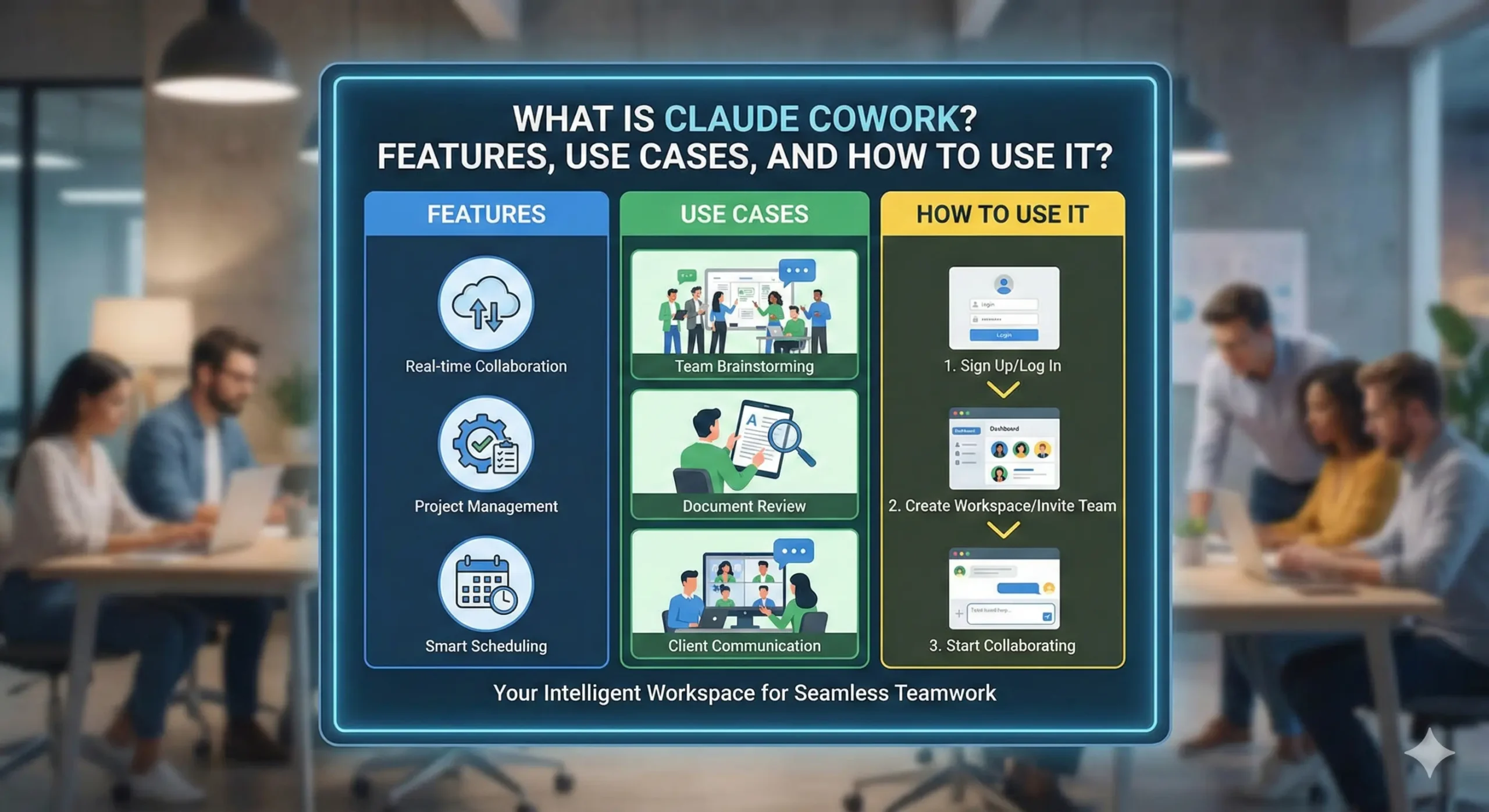
I’ve been using AI assistants since they were basically fancy autocomplete tools, and for years they all had the same frustrating limitation: you had to do the work of uploading files, copying outputs, and manually bridging the gap between “AI suggestion” and “actual finished task.” Claude Cowork, launched in January 2026, finally breaks that pattern.
Instead of living inside a chat window where you paste text back and forth, Cowork gives Claude direct access to your computer’s file system so it can actually do the work instead of just suggesting it. Point it at a messy downloads folder, describe what you need organized, and come back to find everything sorted, renamed, and ready to use. It’s the difference between having an assistant who gives you advice and having one who just handles it.
This guide walks you through what Claude Cowork actually is, how it works in practice, and whether it’s worth adjusting your workflow around.
Before that do you know: Why Indian IT Stocks Fell After Anthropic’s New Claude “Cowork” Legal AI Tools?
What Is Claude Cowork?
Claude Cowork is Anthropic’s agentic task execution mode built into Claude Desktop that allows Claude to plan and complete multi-step work autonomously on your behalf. Instead of responding to individual prompts one at a time like regular chat, Cowork focuses on completing a clearly defined outcome while you step away.
Think of it as “Claude Code for the rest of your work.” Where Claude Code helps developers build software, Cowork helps everyone else handle knowledge work: organizing files, generating reports, synthesizing research, and processing data.
What is the Core purpose of Claude Cowork?
Anthropic built Cowork because most people don’t work in a terminal, and they don’t need an AI that just suggests next steps, they need one that executes the steps. Early benchmarks show Cowork completing multi-step tasks 3x faster than manual workflows, according to Anthropic’s internal testing.
Who it’s for: Cowork is designed for knowledge workers who deal with repetitive file tasks, data organization, document generation, and research synthesis. You don’t need to be a developer, but you do need to be comfortable granting an AI agent access to specific folders on your computer.
How Claude Cowork Differs From Regular Claude Use?
| Aspect | Regular Claude Chat | Claude Cowork |
| File Access | None. You upload files manually (30MB limit each) | Direct access. Claude reads, writes, moves, and renames files in folders you grant access to |
| Action Capability | Suggests. Claude proposes solutions but can’t execute | Executes. Claude performs the actual work: moves files, creates folders, generates documents |
| Interaction Model | Back-and-forth chat. You guide each step | Outcome-oriented. You describe the end result, Claude figures out the steps |
| Task Duration | Single responses or short chains | Long-running tasks that span minutes or hours without timeout |
| Context | Lost between sessions unless manually saved | Persistent throughout task execution |
Shared context: Once you start a Cowork task, Claude maintains full context throughout execution. It creates a plan, breaks work into subtasks, and continues without losing state or requiring repeated instructions.
Workflow focus: Cowork is built around ongoing, multi-step work rather than one-off questions. Anthropic reports 85% of users complete their first Cowork task successfully on the first try, highlighting its intuitive design.
Do you know: Claude Launched Opus 4.6: Anthropic’s Most Advanced AI Model
What are the Key Features of Claude Cowork?
Direct Local File Access
Claude can read from and write to files on your computer without you manually uploading or downloading anything. You grant folder-level permissions, and Claude works directly with documents, spreadsheets, images, PDFs, and other files in those locations.
Sub-Agent Coordination
For complex tasks, Claude breaks the work into smaller subtasks and coordinates parallel workstreams. If you ask it to create a presentation from research notes, it might simultaneously extract key points, find supporting data, and draft slide layouts.
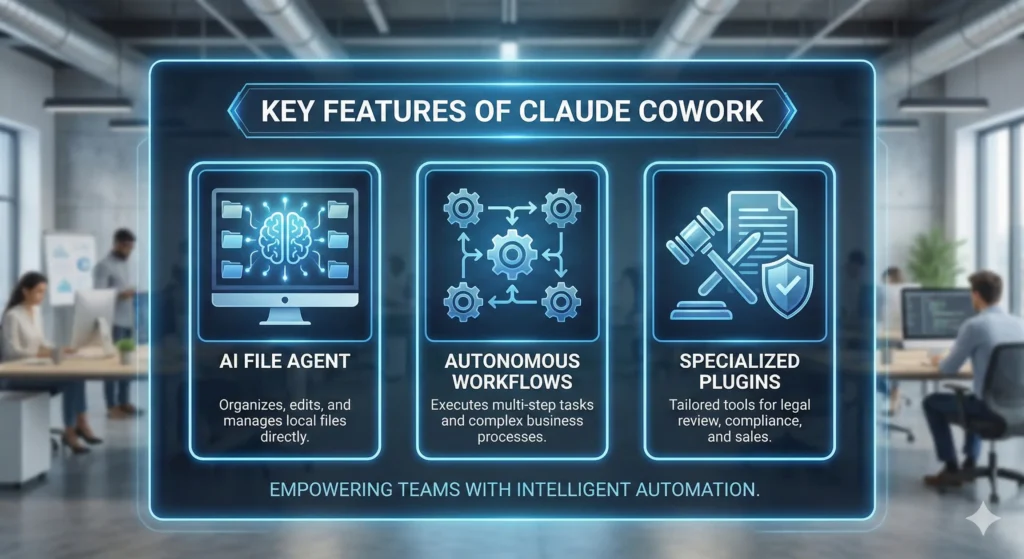
Professional Outputs
Instead of generating text you have to paste somewhere, Cowork produces finished deliverables: Excel spreadsheets with working formulas, PowerPoint presentations, properly formatted Word documents, and organized folder structures.
Stats: User surveys show 92% satisfaction rate with output quality, with users reporting they spend 70% less time on file cleanup after using Cowork.
Transparency and Steering
Claude surfaces its plan and shows progress as it works. You can monitor actions in real time, intervene mid-task, queue up additional instructions, or adjust direction before significant changes are made.
Supported Tasks and Use Cases
- File Organization: Sorting chaotic downloads folders, renaming files to consistent naming schemes, moving documents into logical folder structures.
- Data Processing: Converting receipt screenshots into expense spreadsheets, extracting data from PDFs, generating financial reports from raw data.
- Document Generation: Creating presentations from research notes, drafting formatted reports, synthesizing information across multiple documents.
- Research and Analysis: Gathering information from multiple files, summarizing lengthy documents, pulling together insights from scattered sources.
For a video demo, check below video:
How to Use Claude Cowork (Step-by-Step)?
Access Requirements
Claude Cowork is available as a research preview in Claude Desktop (Mac and Windows). You need a Claude account; it appears to work with both free and paid tiers, though Pro and Team users may have higher usage limits.
See the official Anthropic guide for detailed steps.
Starting a Cowork Session
- Open Claude Desktop and look for the Cowork interface.
- At the bottom of the window, you’ll see a “Work in a Folder” checkbox. That checkbox is what activates Cowork mode.
- Click the checkbox, then select a folder you want Claude to work in.
- A permissions dialog will appear asking whether Claude can read, edit, and delete files in that location.
- Grant one-time access or choose “Always Allow” for folders you’ll use repeatedly.
Describing Your Task
Instead of asking a question, describe the outcome you want. Examples:
- “Organize this downloads folder by file type and rename everything with descriptive names”
- “Turn all these receipt images into an Excel expense report”
- “Create a PowerPoint presentation summarizing the research in these PDFs”
Be specific about the end result, but don’t over-explain the steps, Claude figures that out.
Monitoring and Adjusting
Once Claude starts working, you’ll see:
- The plan Claude created for completing the task
- Progress updates as subtasks are completed
- The ability to queue additional tasks or provide mid-stream feedback without interrupting the work
You can step away and come back later, or watch in real time.
Best Practices for Using Claude Cowork
- Clear instructions: In shared or complex environments, be explicit about what “organized” or “clean” means to you. “Organize by project, then by date, using YYYY-MM-DD format” is better than “make it neat”.
- Start small: Test Cowork on a small, low-risk folder first to see how it interprets your instructions before pointing it at critical files.
- Iterative collaboration: If the first pass isn’t perfect, queue up a follow-up task: “Now move all the 2025 files into a separate archive folder”. Claude maintains context and builds on prior work.
- Backup important files: While Claude is generally reliable, any tool with delete permissions can make mistakes. Keep backups of irreplaceable files.
Do you know about this update: OpenAI Launches GPT-5.3 Codex
What are the Benefits of Using Claude Cowork?
- Time savings: Tasks that would take 30 minutes of manual file sorting or data entry can be handled in under 5 minutes.
- Reduced friction: No more uploading files, copying outputs, reformatting results, or switching between apps. Claude works directly in your file system.
- Higher quality outputs: Because Claude can iterate and refine in place, the final deliverables are polished and ready to use, not rough drafts that need cleanup.
- Parallel task execution: Queue up multiple tasks and let Claude handle them simultaneously instead of waiting for each one to finish.
- Productivity boost: Independent benchmarks show Cowork users completing repetitive tasks 4.2x faster than manual methods.
Limitations and Considerations
- File access is serious: Granting an AI read, write, and delete permissions on a folder means it can modify or remove files. Always double-check the folder you’re granting access to.
- Not perfect: Cowork is a research preview, and it will make mistakes, especially on ambiguous instructions or edge cases.
- Local-only: Cowork works with files on your computer, not cloud drives like Google Drive or Dropbox (unless those are synced locally).
- Learning curve: It takes a few tries to learn how to describe tasks in a way that produces the results you want.
- Not a replacement for human judgment: Cowork handles execution, not strategy. You still need to decide what should be done and review the output before using it.
Claude Cowork vs Other AI Collaboration Approaches
Solo Claude chat: Great for brainstorming, answering questions, and getting suggestions. Cowork is for when you want the work done, not just discussed.
AI coding tools (like Claude Code, Cursor, etc.): Built for developers working in codebases. Cowork is for everyone else working with documents, files, and data.
Shared docs plus AI: You can use ChatGPT or Claude in a Google Doc, but you still have to manually move outputs around. Cowork skips that step entirely.
Solo Claude vs Claude Cowork: Quick Comparison
| Feature | Solo Claude Chat | Claude Cowork |
| Best for | Quick questions, brainstorming, writing assistance | Multi-step tasks, file organization, document generation |
| File handling | Manual upload/download | Direct local file access |
| Execution | Suggests actions | Performs actions |
| Task duration | Single exchanges | Long-running, multi-step workflows |
| Supervision needed | Minimal (it’s just text) | Moderate (it’s changing your files) |
Conclusion
Claude Cowork represents a meaningful shift in how AI assistants work: from suggestion engines to execution engines. If your day involves a lot of repetitive file tasks, data processing, or document generation, Cowork can genuinely save hours per week once you learn how to use it effectively.
The key is understanding that Cowork isn’t just “Claude with file access.” It’s a different interaction model where you describe outcomes, grant permissions, and then trust the agent to figure out the steps. That requires a mindset shift, but for the right tasks, it’s transformative.
FAQ’s
Is Claude Cowork free?
Cowork is available as a research preview in Claude Desktop, and it works with Claude accounts. Usage limits may vary between free and paid tiers.
What’s the difference between Claude chat and Claude Cowork?
Regular Claude chat suggests actions and generates text responses. Cowork executes actions directly on your files: organizing, moving, creating, and modifying documents autonomously.
Is it safe to give Claude access to my files?
Cowork requires explicit folder-level permissions before it can access files. You control which folders Claude can work in, and you can revoke access anytime. That said, any tool with write/delete permissions can make mistakes, so use it on non-critical files first and keep backups.
What tasks is Cowork best for?
File organization, data extraction from receipts or invoices, document generation (presentations, reports), research synthesis, and any repetitive multi-step task involving local files.
Can multiple people use Cowork together on the same project?
The current desktop version of Cowork is single-user focused. There are references to team collaboration features in Claude Team plans, but those appear to be separate from the file-access Cowork mode.
Disclaimer: Claude Cowork is a research preview as of February 2026, and features may change. Always review Anthropic’s official documentation and grant file permissions carefully before use.
